Benutzerdefinierte Muster sind benutzerdefinierte Muster, die Sie verwenden können, um geheime Schlüssel zu identifizieren, die von den standard unterstützten secret scanningMustern nicht erkannt werden. Weitere Informationen findest du unter Definieren von benutzerdefinierten Mustern für die Geheimnisüberprüfung.
Auf Unternehmensebene kann nur der Ersteller eines benutzerdefinierten Musters das Muster bearbeiten und in einem Probelauf verwenden. Es gibt keine ähnlichen Einschränkungen für die Bearbeitung von benutzerdefinierten Mustern auf Repository- und Organisationsebene.
Bearbeiten eines benutzerdefinierten Musters
Wenn Sie eine Änderung an einem benutzerdefinierten Muster speichern, werden dadurch alle Warnungen zur Geheimnisüberprüfung, die mit der vorherigen Version des Musters erstellt wurden, geschlossen.
-
Navigiere zu der Stelle, an der das benutzerdefinierte Muster erstellt wurde. Ein benutzerdefiniertes Muster kann in einem Repository, einer Organisation oder einem Unternehmenskonto erstellt werden.
- Zeigen Sie für ein Repository oder eine Organisation die "Advanced Security"-Einstellungen für das Repository oder die Organisation an, in dem das benutzerdefinierte Muster erstellt wurde. Weitere Informationen findest du unter Definieren eines benutzerdefinierten Musters für ein Repository oder Definieren eines benutzerdefinierten Musters für eine Organisation.
- Für ein Unternehmen zeigen Sie unter "Richtlinien" den Bereich "Advanced Security Code security" an, und klicken Sie dann auf "Sicherheitsfeatures". Weitere Informationen findest du unter Definieren eines benutzerdefinierten Musters für ein Unternehmenskonto.
-
Klicken Sie unter "Benutzerdefinierte Muster" rechts neben dem benutzerdefinierten Muster, das Sie bearbeiten möchten, auf .
-
Wenn du bereit bist, dein bearbeitetes benutzerdefiniertes Muster zu testen, um Übereinstimmungen zu identifizieren, ohne Warnungen zu erstellen, klicke auf Speichern und Probelauf.
-
Wenn du deine Änderungen überprüft und getestet hast, klicke auf Publish changes.
-
Klicke optional auf Aktivieren, um den Pushschutz für dein benutzerdefiniertes Muster zu aktivieren.
Hinweis
- Der Pushschutz für benutzerdefinierte Muster gilt nur für Repositorys, die als Pushschutz aktiviert sind secret scanning . Weitere Informationen zum Aktivieren des Pushschutzes findest du unter Pushschutz.
- Die Aktivierung des Pushschutzes für häufig vorkommende benutzerdefinierte Muster kann für Mitwirkende störend sein.
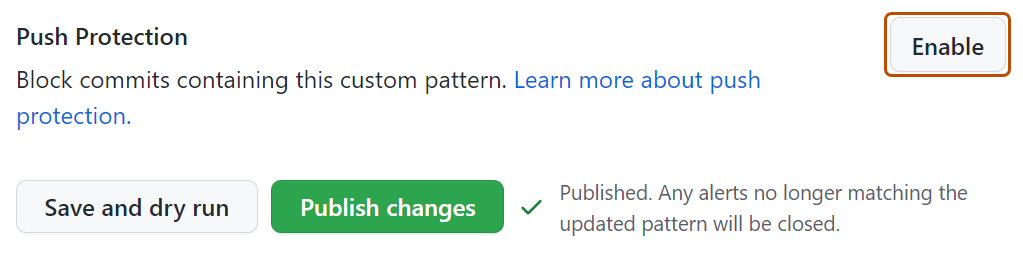
-
Klicke optional auf Deaktivieren, um den Pushschutz für dein benutzerdefiniertes Muster zu deaktivieren.
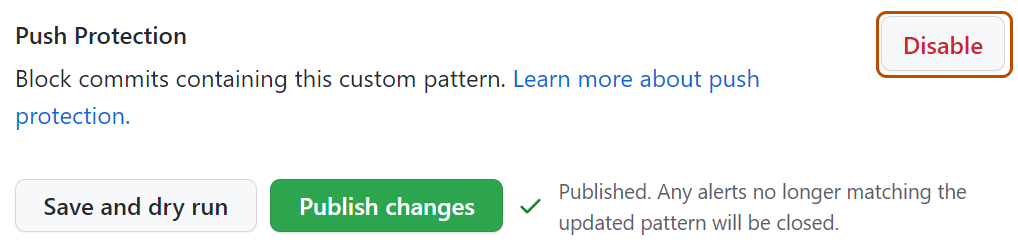


Entfernen eines benutzerdefinierten Musters
Wenn Sie ein benutzerdefiniertes Muster entfernen, bietet Ihnen GitHub die Möglichkeit, die Warnungen zur Geheimnisüberprüfung, die sich auf das Muster beziehen, zu schließen oder diese Benachrichtigungen beizubehalten.
- Navigiere zu der Stelle, an der das benutzerdefinierte Muster erstellt wurde. Ein benutzerdefiniertes Muster kann in einem Repository, einer Organisation oder einem Unternehmenskonto erstellt werden.
- Zeigen Sie für ein Repository oder eine Organisation die "Advanced Security"-Einstellungen für das Repository oder die Organisation an, in dem das benutzerdefinierte Muster erstellt wurde. Weitere Informationen findest du unter Definieren eines benutzerdefinierten Musters für ein Repository oder Definieren eines benutzerdefinierten Musters für eine Organisation.
- Für ein Unternehmen zeigen Sie unter "Richtlinien" den Bereich "Advanced Security Code security" an, und klicken Sie dann auf "Sicherheitsfeatures". Weitere Informationen findest du unter Definieren eines benutzerdefinierten Musters für ein Unternehmenskonto.
- Klicken Sie rechts neben dem benutzerdefinierten Muster, das Sie entfernen möchten, auf .
- Überprüfe die Bestätigung, und wähle eine Methode für den Umgang mit geöffneten Warnungen im Zusammenhang mit dem benutzerdefinierten Muster aus.
- Klicke auf Ja, dieses Muster löschen.
Wenn Sie sich entscheiden, die Warnungen beim Entfernen eines benutzerdefinierten Musters zu schließen, müssen Sie beachten, dass der Löschvorgang asynchron im Hintergrund erfolgt. Bei benutzerdefinierten Mustern, die eine große Anzahl von Warnungen (Tausende oder mehr) generiert haben, kann der Löschvorgang mehrere Minuten bis zu Stunden dauern. Sie können weiterarbeiten, während der Vorgang abgeschlossen ist.
Aktivieren des Pushschutzes für ein benutzerdefiniertes Muster
Sie können secret scanning als Pushschutz für benutzerdefinierte Muster aktivieren, die auf Unternehmens-, Organisations- oder Repositoryebene gespeichert sind.
Aktivieren des Pushschutzes für ein benutzerdefiniertes Muster, das in einem Unternehmen gespeichert ist
Hinweis
- Um den Pushschutz für benutzerdefinierte Muster zu ermöglichen, muss der secret scanning als Pushschutz auf Unternehmensebene aktiviert werden.
- Die Aktivierung des Pushschutzes für häufig vorkommende benutzerdefinierte Muster kann für Mitwirkende störend sein.
Bevor Sie den Push-Schutz für ein benutzerdefiniertes Muster auf Unternehmensebene aktivieren, müssen Sie Ihre benutzerdefinierten Muster auch in Probeläufen testen. Du kannst einen Testlauf nur für Repositorys ausführen, auf die du Administratorzugriff hast. Unternehmensbesitzer*innen, die Zugriff zum Ausführen von Testläufen für ein Repository in einer Organisation wünschen, muss die Rolle „Organisationsbesitzer“ zugewiesen sein. Weitere Informationen finden Sie unter Verwalten deiner Rolle in einer Organisation, die deinem Unternehmen gehört.
-
Navigieren Sie zu Ihrem Unternehmen. Beispielsweise auf der Seite Unternehmen in GitHub.com.
-
Klicken Sie oben auf der Seite auf "Richtlinien".
-
Klicke unter „Policies“ auf Advanced Security Code security.
-
Klicken Sie unter "Advanced Security Code security" auf "Sicherheitsfeatures".
-
Klicke unter „Secret scanning“ und „Benutzerdefinierte Muster“ bei dem Muster, das du bearbeiten möchtest, auf .
Hinweis
Auf Unternehmensebene kannst du den Push-Schutz nur für benutzerdefinierte Muster bearbeiten und aktivieren, die du erstellt hast.
-
Um den Pushschutz für dein benutzerdefiniertes Muster zu aktivieren, scrolle nach unten zu „Pushschutz“, und klicke auf Aktivieren.
Hinweis
Die Option zum Aktivieren des Pushschutzes ist nur für veröffentlichte Muster sichtbar.
Aktivieren von secret scanning als Pushschutz für ein benutzerdefiniertes Muster in einer Organisation
Bevor Sie den Push-Schutz für ein benutzerdefiniertes Muster auf Organisationsebene aktivieren, müssen Sie sicherstellen, dass Sie secret scanning für die Repositories aktivieren, die Sie in Ihrer Organisation scannen möchten. Informationen zum Aktivieren secret scanning aller Repositorys in Ihrer Organisation finden Sie unter Verwalten von Sicherheits- und Analyseeinstellungen für deine Organisation.
-
Klicke in der rechten oberen Ecke von GitHub auf dein Profilbild und dann auf Your organizations.
-
Wählen Sie eine Organisation aus, indem Sie darauf klicken.
-
Klicke unter dem Organisationsnamen auf Settings. Wenn die Registerkarte „Einstellungen“ nicht angezeigt wird, wähle im Dropdownmenü die Option Einstellungen aus.

-
Wählen Sie im Abschnitt "Sicherheit" der Randleiste das Advanced Security Dropdownmenü aus, und klicken Sie dann auf Global settings.
-
Klicken Sie unter "Benutzerdefinierte Muster" auf für das Muster von Interesse.
-
Um den Pushschutz für dein benutzerdefiniertes Muster zu aktivieren, scrolle nach unten zu „Pushschutz“, und klicke auf Aktivieren.
Hinweis
- Die Option zum Aktivieren des Pushschutzes ist nur für veröffentlichte Muster sichtbar.
- Der Pushschutz für benutzerdefinierte Muster wird nur auf Repositorys in deiner Organisation angewendet, bei denen die secret scanning als Pushschutz aktiviert ist.
- Die Aktivierung des Pushschutzes für häufig vorkommende benutzerdefinierte Muster kann für Mitwirkende störend sein.

Aktivieren secret scanning als Pushschutz in einem Repository für ein benutzerdefiniertes Muster
Bevor du den Pushschutz für ein benutzerdefiniertes Muster auf Repositoryebene aktivierst, musst du das benutzerdefinierte Muster für das Repository definieren und im Repository testen. Weitere Informationen findest du unter Definieren von benutzerdefinierten Mustern für die Geheimnisüberprüfung.
-
Navigieren Sie auf GitHub zur Hauptseite des Repositorys.
-
Klicke unter dem Repositorynamen auf Settings. Wenn die Registerkarte „Einstellungen“ nicht angezeigt wird, wähle im Dropdownmenü die Option Einstellungen aus.

-
Klicken Sie im Abschnitt "Sicherheit und Qualität" der Randleiste auf Advanced Security.
-
Unter „Secret Protection“, unter „Benutzerdefinierte Muster“, klicken Sie für das gewünschte Muster auf .
-
Um den Pushschutz für dein benutzerdefiniertes Muster zu aktivieren, scrolle nach unten zu „Pushschutz“, und klicke auf Aktivieren.
Hinweis
Die Option zum Aktivieren des Pushschutzes ist nur für veröffentlichte Muster sichtbar.
