Introduction
GitHub Copilot can review your code and provide feedback. Where possible, Copilot's feedback includes suggested changes which you can apply with a couple of clicks.
For a full introduction to GitHub Copilot code review, see GitHub Copilot 코드 검토 정보.
Copilot code review uses GitHub Actions to run agentic capabilities. For more information, see Agentic capabilities for Copilot code review.
Copilot code review is also available for organization members without a Copilot license, when enabled by an enterprise administrator or organization owner. See Copilot code review for organization members without a Copilot license.
Using Copilot code review
These instructions explain how to use Copilot code review in the GitHub website. To see instructions for other popular coding environments, click the appropriate tab at the top of the page.
-
On GitHub.com, create a pull request or navigate to an existing pull request.
-
Under "Reviewers" in the right sidebar, next to Copilot, click Request.

-
Wait for Copilot to review your pull request. This usually takes less than 30 seconds.
-
Scroll down and read through Copilot's comments.

Copilot labels each comment with a severity level of "High," "Medium," or "Low" to help you prioritize the issues it finds based on their importance.
By default, Copilot leaves a "Comment" review, not an "Approve" review or a "Request changes" review. This means that, by default, Copilot's reviews do not count toward required approvals for the pull request. However, if configured to do so, Copilot can leave "Approve" reviews. For more information, see Pull request approvals from Copilot.
-
Where possible, Copilot's feedback includes suggested changes which you can apply with a couple of clicks.
If you're happy with the changes, you can accept a single suggestion from Copilot and commit it, or accept a group of suggestions together in a single commit. For more information, see 끌어오기 요청에 피드백 통합.
You can also invoke Copilot cloud agent to implement suggested changes. To do this, you must:
- Enable GitHub Copilot code review and Copilot cloud agent.
- On review comments from GitHub Copilot code review, click Fix with Copilot. This creates a draft comment on the pull request, where you can instruct Copilot to address specific feedback. You can then select whether Copilot will create a new pull request against your branch or a commit to the same pull request with the suggestions applied.
-
Copilot's review comments behave like review comments from humans. You can add reactions to them, comment on them, resolve them and hide them.
Any comments you add to Copilot's review comments will be visible to humans, but they won't be visible to Copilot, and Copilot won't reply.


You can also request a review from Copilot through the GitHub REST API by requesting copilot-pull-request-reviewer[bot] as a reviewer. For more information, see 검토 요청에 대한 REST API 엔드포인트.
Enabling automatic reviews
By default, you manually request a review from Copilot on each pull request, in the same way you would request a review from a human. However, you can set up Copilot to automatically review all pull requests. See GitHub Copilot으로 코드 검토 구성하기.
Requesting a re-review from Copilot
When you push changes to a pull request that Copilot has reviewed, it won't automatically re-review your changes unless you've configured it to review new pushes after enabling automatic reviews.
To manually request a re-review from Copilot, click the button next to Copilot's name in the Reviewers menu. For more information, see 끌어오기 요청 검토 요청.
To automatically request re-reviews from Copilot on every push, enable automatic code review for the repository and select Review new pushes in the ruleset settings. For more information, see GitHub Copilot으로 코드 검토 구성하기.
참고
When re-reviewing a pull request, Copilot may repeat the same comments again, even if they have been dismissed with the "Resolve conversation" button or downvoted with the thumbs down (👎) button.
Choosing a review effort level
With review effort levels, you can choose the level of thoroughness of Copilot's review that matches the criticality of your code.
- Lite: Cost-efficient review that provides targeted feedback on glaring issues such as bugs, security vulnerabilities, and style inconsistencies.
- Balanced: Deeper analysis of complex logic, security-sensitive code, and cross-service changes, using a higher-reasoning model.
You can select Copilot review effort in the pull request before you request a review from Copilot, under the Reviewers section where Copilot appears as a reviewer. You can also set a default Copilot review effort in your settings. Organization owners and repository administrators can set a default Copilot review effort for automatic reviews.
For more information, see GitHub Copilot 코드 검토 정보.
Pull request approvals from Copilot
참고
Copilot 승인은 공개 미리 보기 상태이며 변경될 수 있습니다.
Every Copilot code review includes an approval assessment in the overview comment, indicating whether Copilot considers the pull request ready to approve. On its own, this assessment does not count toward merge requirements.
When approvals are enabled, Copilot can submit an approving review that satisfies your repository's required-approval rule the same way a teammate's approval would. If new commits are pushed after Copilot approves, the approval is dismissed, and you can re-request a review. For more details on required reviews, see 필수 검토가 필요한 끌어오기 요청 승인.
Approvals are off by default and can be configured at the enterprise, organization, and repository levels. Repository administrators can also use file paths to control which Copilot approvals count toward merge requirements. For configuration steps, see GitHub Copilot으로 코드 검토 구성하기.
Customizing Copilot's reviews with custom instructions
리포지토리에 사용자 지정 지침을 추가하여 사용자 지정할 Copilot code review 수 있습니다. 리포지토리 사용자 지정 지침은 리포지토리 전체 범위 또는 경로 지정 방식으로 설정할 수 있습니다.
전체 코드베이스에 걸쳐 적용되어야 하는 리포지토리 전반의 검토 지침에는 .github/copilot-instructions.md를 사용합니다. 코딩 표준, 검토 기준 또는 모든 검토에서 고려해야 하는 일반적인 관행과 같은 조직 전체의 기대치를 Copilot 설명하기에 좋은 장소입니다.
AGENTS.md 리포지토리의 루트에 있는 파일을 사용하여 프로젝트의 작동 방식을 더 잘 이해하는 데 도움이 되는 Copilot 추가 리포지토리 컨텍스트를 제공합니다. 예를 들어 의도적인 패턴, 코드베이스의 어느 부분에 대한 면밀한 조사가 필요한지, 팀이 좋은 아키텍처, 테스트 및 구현 사례를 고려하는 것을 설명할 수 있습니다. 이렇게 하면 검토가 더 관련성이 높고 팀이 소프트웨어를 빌드하는 방식에 맞게 조정됩니다.
해당 경로와 일치하는 파일을 검토할 때만 적용되는 경로별 지침에는 .github/instructions/**/*.instructions.md 파일을 사용합니다. 이 기능은 리포지토리의 여러 부분이 서로 다른 규칙을 따르거나, 특수한 검사가 필요하거나, 특정 언어, 프레임워크 또는 하위 시스템에 맞게 조정된 검토 지침이 필요한 경우에 유용합니다.
Copilot code review는 리포지토리에 REVIEW.md, GEMINI.md, CLAUDE.md 파일이 있는 경우 해당 파일에서 사용자 지정 지침을 추가로 읽어옵니다.
자세한 내용은 GitHub Copilot 대한 리포지토리 사용자 지정 지침 추가을(를) 참조하세요.
참고
Copilot는 풀 리퀘스트를 검토할 때 기본 분기가 아니라 헤드 분기(변경 내용이 있는 분기)에서 리포지토리별 사용자 지정 지침, 에이전트 지침, 그리고 에이전트 스킬을 읽습니다. 예를 들어 my-feature-branch을 main에 병합할 때 Copilot는 my-feature-branch의 지침과 기술을 사용하므로, 이를 먼저 병합하지 않고도 동일한 풀 리퀘스트에서 해당 변경 사항을 테스트할 수 있습니다.
예시
이 파일 예제 .github/copilot-instructions.md 에는 리포지토리의 모든 Copilot code reviewS에 적용할 세 가지 지침이 포함되어 있습니다.
When performing a code review, respond in Spanish.

When performing a code review, apply the checks in the `/security/security-checklist.md` file.

When performing a code review, focus on readability and avoid nested ternary operators.
MCP servers and agent skills
Copilot code review can use agent skills and MCP servers configured in the repository, when they are relevant to the code being reviewed.
To make these available for Copilot code review on GitHub, configure:
- Agent skills in your repository (in
.github/skills). If you want a skill to target review tasks, use a review-focused skill directory name such ascode-review. For setup details, see GitHub Copilot에 에이전트 기술 추가. - MCP servers in repository Copilot settings. The GitHub MCP server and Playwright MCP server are enabled by default. For setup details, see 리포지토리에 대한 MCP 서버 구성.
Copilot code review 은 다음과 같은 경우 이 컨텍스트를 사용할 가능성이 높습니다.
- 에이전트 기술 디렉터리에는 끌어오기 요청 검토를 위한 것임을 나타내는 검토 중심 이름 및 설명(예:
code-review)이 있습니다. - 에이전트 스킬 또는 사용자 지정 지침은 Copilot code review에게 특정 MCP 컨텍스트를 사용하도록 명시적으로 지시합니다.
- 끌어오기 요청 설명은 문제 키 또는 인시던트 ID와 같이 구성된 MCP 서버를 통해 사용할 수 있는 항목을 참조합니다.
특정 검토에 사용된 MCP 컨텍스트 Copilot code review 를 확인하려면 각 검토 주석의 맨 아래에 특성이 있는지 확인합니다. 이러한 특성은 해당 주석을 생성하는 데 사용한 특정 에이전트 기술 또는 MCP 서버를 Copilot code review 참조합니다. 끌어오기 요청 타임라인에서 연결된 검토 세션을 연 다음 세션 로그를 확인하여 어떤 MCP 서버 및 도구가 호출되었는지 확인할 수도 있습니다.
리포지토리 설정에서 풀 리퀘스트를 검토할 때 Copilot이 MCP 도구를 사용하도록 허용은 기본적으로 활성화되어 있습니다. MCP 서버를 Copilot cloud agent에서만 사용할 수 있고 Copilot code review에서는 사용할 수 없게 하려면 이 설정을 끄세요. 단계별 지침은 리포지토리에 대한 MCP 서버 구성을 참조하세요.
Customizing Copilot code review's environment
Copilot code review runs in an ephemeral development environment, similar to Copilot cloud agent. You can customize this environment using a GitHub Actions workflow file, in the same way you would for Copilot cloud agent, for example, to preinstall tools or dependencies, or to switch to a different operating system. For more information on how to structure this file, see 개발 환경 구성.
You can use either of the following files to configure Copilot code review's environment:
.github/workflows/copilot-setup-steps.yml: If you have already configured this file for Copilot cloud agent, Copilot code review will use the same configuration by default..github/workflows/copilot-code-review.yml: We recommend creating this file if you want to configure Copilot code review's environment independently of Copilot cloud agent. If this file is present in your repository, it is used for Copilot code review instead ofcopilot-setup-steps.yml.
You can also configure firewall rules to control the domains and URLs that Copilot code review can access, at both the organization and repository level. These settings are configured separately from Copilot cloud agent's firewall settings, in their own section of the same "Internet access" tab. See GitHub Copilot 방화벽 사용자 지정 또는 비활성화.
Providing feedback on Copilot's reviews
You can provide feedback on Copilot's comments directly within each comment. We use this information to improve the product and the quality of Copilot's suggestions.
To provide feedback on a review comment from Copilot, click the thumbs up (👍) or thumbs down (👎) button.

Reviewing a selection of code
You can request an initial review of a highlighted selection of code in Visual Studio Code.
- In Visual Studio Code, select the code you want to review.
- Right-click the selected code and choose Generate Code > Review.
- VS Code creates review comments in the Comments panel and also shows them inline in the editor.
Reviewing all uncommitted changes
If you have uncommitted changes, you can request a review in Visual Studio Code.
-
In VS Code, click the Source Control button in the Activity Bar.
-
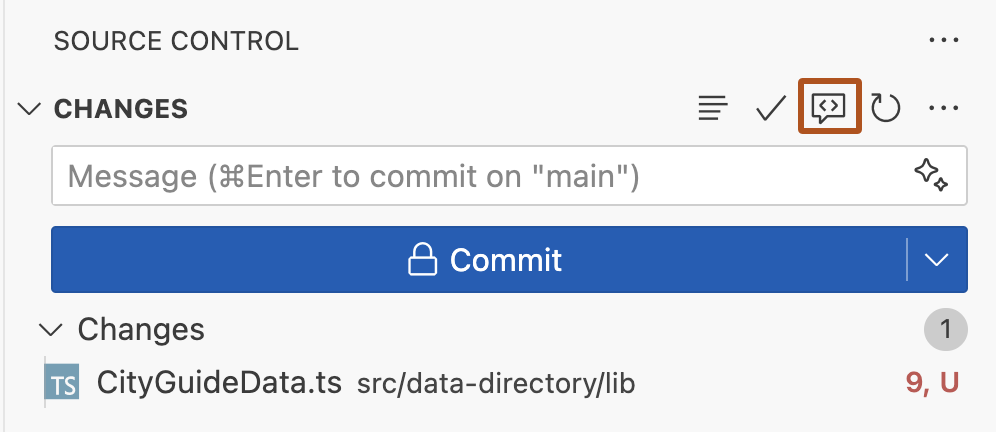
At the top of the Source Control view, hover over CHANGES, then click the Copilot Code Review - Uncommitted Changes button.
-
Wait for Copilot to review your changes. This usually takes less than 30 seconds.
-
If Copilot has any comments, they will be shown inline in your file(s), and in the Problems tab.

Working with suggested changes provided by Copilot
Where possible, Copilot's feedback includes suggested changes which you can apply with a single click.

If you're happy with the change, you can accept a suggestion from Copilot by clicking the Apply and Go To Next button. Any changes you apply will not be automatically committed.
If you don't want to apply Copilot's suggested change, click the Discard and Go to Next button.
Providing feedback on Copilot's reviews
You can provide feedback on Copilot's comments directly within each comment. We use this information to improve the product and the quality of Copilot's suggestions.
To provide feedback, hover over the comment and click the thumbs up or thumbs down button.

Customizing Copilot's reviews with custom instructions
리포지토리에 사용자 지정 지침을 추가하여 사용자 지정할 Copilot code review 수 있습니다. 리포지토리 사용자 지정 지침은 리포지토리 전체 범위 또는 경로 지정 방식으로 설정할 수 있습니다.
전체 코드베이스에 걸쳐 적용되어야 하는 리포지토리 전반의 검토 지침에는 .github/copilot-instructions.md를 사용합니다. 코딩 표준, 검토 기준 또는 모든 검토에서 고려해야 하는 일반적인 관행과 같은 조직 전체의 기대치를 Copilot 설명하기에 좋은 장소입니다.
AGENTS.md 리포지토리의 루트에 있는 파일을 사용하여 프로젝트의 작동 방식을 더 잘 이해하는 데 도움이 되는 Copilot 추가 리포지토리 컨텍스트를 제공합니다. 예를 들어 의도적인 패턴, 코드베이스의 어느 부분에 대한 면밀한 조사가 필요한지, 팀이 좋은 아키텍처, 테스트 및 구현 사례를 고려하는 것을 설명할 수 있습니다. 이렇게 하면 검토가 더 관련성이 높고 팀이 소프트웨어를 빌드하는 방식에 맞게 조정됩니다.
해당 경로와 일치하는 파일을 검토할 때만 적용되는 경로별 지침에는 .github/instructions/**/*.instructions.md 파일을 사용합니다. 이 기능은 리포지토리의 여러 부분이 서로 다른 규칙을 따르거나, 특수한 검사가 필요하거나, 특정 언어, 프레임워크 또는 하위 시스템에 맞게 조정된 검토 지침이 필요한 경우에 유용합니다.
Copilot code review는 리포지토리에 REVIEW.md, GEMINI.md, CLAUDE.md 파일이 있는 경우 해당 파일에서 사용자 지정 지침을 추가로 읽어옵니다.
자세한 내용은 GitHub Copilot 대한 리포지토리 사용자 지정 지침 추가을(를) 참조하세요.
참고
Copilot는 풀 리퀘스트를 검토할 때 기본 분기가 아니라 헤드 분기(변경 내용이 있는 분기)에서 리포지토리별 사용자 지정 지침, 에이전트 지침, 그리고 에이전트 스킬을 읽습니다. 예를 들어 my-feature-branch을 main에 병합할 때 Copilot는 my-feature-branch의 지침과 기술을 사용하므로, 이를 먼저 병합하지 않고도 동일한 풀 리퀘스트에서 해당 변경 사항을 테스트할 수 있습니다.
예시
이 파일 예제 .github/copilot-instructions.md 에는 리포지토리의 모든 Copilot code reviewS에 적용할 세 가지 지침이 포함되어 있습니다.
When performing a code review, respond in Spanish.

When performing a code review, apply the checks in the `/security/security-checklist.md` file.

When performing a code review, focus on readability and avoid nested ternary operators.
Prerequisite
To use Copilot code review, you must use Visual Studio version 17.14 or later. See the Visual Studio downloads page.
Using Copilot code review
These instructions explain how to use Copilot code review in Visual Studio. To see instructions for other popular coding environments, click the appropriate tab at the top of the page.
-
In the Git Changes window, click Review changes with Copilot. This button appears as a comment icon with a sparkle.
-
Copilot will begin reviewing your changes. After a few moments, a link showing the number of code review comments appears in the Git Changes window.
-
Click the link to view and navigate the comments. If no issues are found, you'll see the message: Copilot did not comment on any files.
-
Copilot displays comments in your code with a summary of each potential issue. You can:
- Review and make changes based on the suggestions.
- Dismiss a comment using the downward arrow in the top-right corner of the comment box.
-
To remove all review comments, click next to the code review link in the Git Changes window.
For more information on enabling and configuring Copilot code review in Visual Studio, see Review local changes with Copilot Chat in the Visual Studio documentation.
Using Copilot code review
These instructions explain how to use Copilot code review in GitHub Mobile. To see instructions for other popular coding environments, click the appropriate tab at the top of the page.
- In GitHub Mobile, open a pull request.
- Scroll down to the Reviews section and expand it.
- Click Request Reviews.
- Add Copilot as a reviewer, then click Done.
Copilot will review the changes and provide feedback.
Prerequisite
To use Copilot code review in Xcode, you must use version 0.41.0 or later of the GitHub Copilot Chat extension. Download the latest release from the github/CopilotForXcode repository.
Using Copilot code review
These instructions explain how to use Copilot code review in Xcode. To see instructions for other popular coding environments, click the appropriate tab at the top of the page.
-
In Xcode, make some changes to one or more files.
-
Open the Copilot chat window by clicking Editor in the menu bar, clicking GitHub Copilot then Open Chat.
-
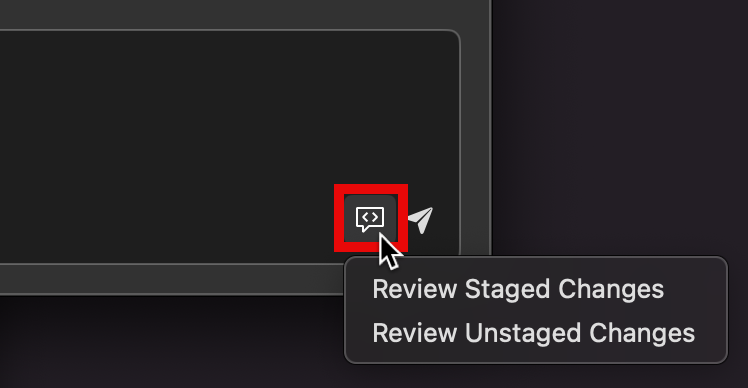
Near the bottom right of the prompt box in the Copilot chat window, click the Code Review button (a speech bubble icon).
-
Click either Review Staged Changes or Review Unstaged Changes.
-
A list of files containing changes is displayed in the chat window. Click the check boxes to deselect any files you don't want Copilot to review.
-
Click Continue to start the review process.
-
If Copilot finds things to comment on, it displays a Reviewed Changes list in the chat window, listing the files it has commented on. Click a file in this list to see the comments.
Each comment is shown in a popup, overlaid over the editor.

-
If there is more than one comment in the file, use the up and down arrows, at the top right of the popup, to navigate between comments.
-
Copilot may suggest replacement code. You can apply the suggested change by clicking Accept or reject it by clicking Dismiss.
-
Click another file in the Reviewed Changes list in the chat window, to see the review comments for another file.


Prerequisites
-
Access to Copilot. GitHub Copilot 소개을(를) 참조하세요.
-
Compatible JetBrains IDE. To use GitHub Copilot in JetBrains, you must have a compatible JetBrains IDE installed. GitHub Copilot is compatible with the following IDEs:
- IntelliJ IDEA(Ultimate, Community, Educational)
- Android Studio
- CLion
- Code With Me 게스트
- DataGrip
- DataSpell
- GoLand
- JetBrains 클라이언트
- MPS
- PhpStorm
- PyCharm(Professional, Community, Educational)
- Rider
- RubyMine
- RustRover
- WebStorm
다운로드할 JetBrains IDE 도구 찾기를 참조하세요.
-
확장의 최신 버전입니다GitHub Copilot. JetBrains Marketplace의 플러그 인을 참조하세요.GitHub Copilot 설치 지침은 사용자 환경에 GitHub Copilot 확장 설치을(를) 참조하세요.
-
GitHub JetBrains IDE에 로그인합니다. 인증 지침은 사용자 환경에 GitHub Copilot 확장 설치을(를) 참조하세요.
Using Copilot code review
These instructions explain how to use Copilot code review in JetBrains IDEs. To see instructions for other popular coding environments, click the appropriate tab at the top of the page.
-
In a JetBrains IDE, make some changes to one or more files.
-
Open the "Commit" tool window on the left-hand side.
-
Above the commit message input field, click Copilot: Review Code Changes. This button appears as a magnifying glass icon with a sparkle.
-
Copilot will begin reviewing your changes.
-
Copilot displays comments in your code with a summary of each potential issue. You can:
- Review and make changes based on the suggestions.
- Dismiss a comment by clicking Discard.
-
If there is more than one comment, use the up and down arrows, at the top right of the popup, to navigate between comments.
Prerequisites
- Access to Copilot. GitHub Copilot 소개을(를) 참조하세요.
- GitHub CLI. You must have the GitHub CLI installed and authenticated. See GITHUB CLI 빠른 시작.
Using Copilot code review
These instructions explain how to use Copilot code review with the GitHub CLI. To see instructions for other popular coding environments, click the appropriate tab at the top of the page.
Requesting a review when creating a pull request
You can request a review from Copilot when creating a new pull request using gh pr create:
gh pr create --reviewer @copilot
gh pr create --reviewer @copilot
You can also select Copilot interactively from the searchable reviewer prompt during gh pr create.
? Reviewers  [Use arrows to move, space to select, <right> to all, <left> to none, type to filter]
  [ ]  Search (7472 more)
  [x]  monalisa (Mona Lisa)
> [x]  Copilot (AI)
Requesting a review on an existing pull request
To request a review from Copilot on an existing pull request, use gh pr edit. If you are not on the pull request's branch, specify the pull request number:
gh pr edit PR-NUMBER --add-reviewer @copilot
gh pr edit PR-NUMBER --add-reviewer @copilot
Replace PR-NUMBER with the number of the pull request you want reviewed. If you have the pull request's branch checked out, you can omit the number.