You can use text fields to include notes or any other freeform text in your project.
Text fields can be used in filters, for example: field:"exact text". Text fields and item titles will also be used if you filter for text without specifying a field.
Number fields can also be used in filters. You can use >, >=, <, <=, and .. range queries to filter by a number field. For example: field:5..15 or field:>=20. For more information, see Filtering projects.
Adding a text field
- In table view, in the rightmost field header, click .
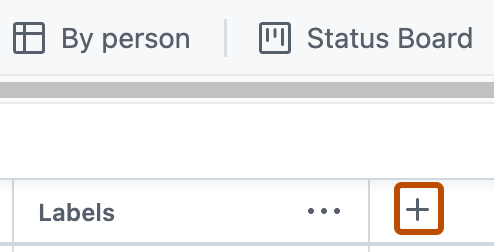
- Click New field.
- At the top of the dropdown, type the name of your new field.
- Select Text.
- Click Save.

Adding a number field
- In table view, in the rightmost field header, click .
- Click New field.
- At the top of the dropdown, type the name of your new field.
- Select Number.
- Click Save.
Setting a default value
Set a default value for text or number fields. New items added to the project are automatically pre-populated with that value.
-
Navigate to your project.
-
In the top-right, click to open the menu.
-
In the menu, click Settings to access the project settings.
-
Click the name of the text or number field to configure.
-
In the Default value field, type the value to use as the default.
-
Click Save.

To remove a default value, clear the Default value field, then click Save. Removing a default value does not affect existing items in the project.