Creating a pull request

Create a pull request to propose changes to the code in a repository.

谁可以使用此功能?

Anyone with read access to a repository can create a pull request.

If you want to create a new branch for your pull request but don't have write permissions to the repository, you can fork the repository first. See Creating a pull request from a fork and Forks.

When you create your pull request, you can specify which branch you want to merge your changes into. Pull requests can only be opened between two different branches.

注意

要在公共存储库中打开拉取请求,你必须具有对头分支或源分支写入权限;对于组织拥有的仓库,你必须是拥有该存储库的组织的成员才能打开拉取请求。

可以将拉取请求链接到问题,以显示修复正在进行,并在合并拉取请求时自动关闭问题。 有关详细信息,请参阅“将拉取请求链接到议题”。

Creating the pull request

  1. 在 GitHub 上,导航到存储库的主页面。

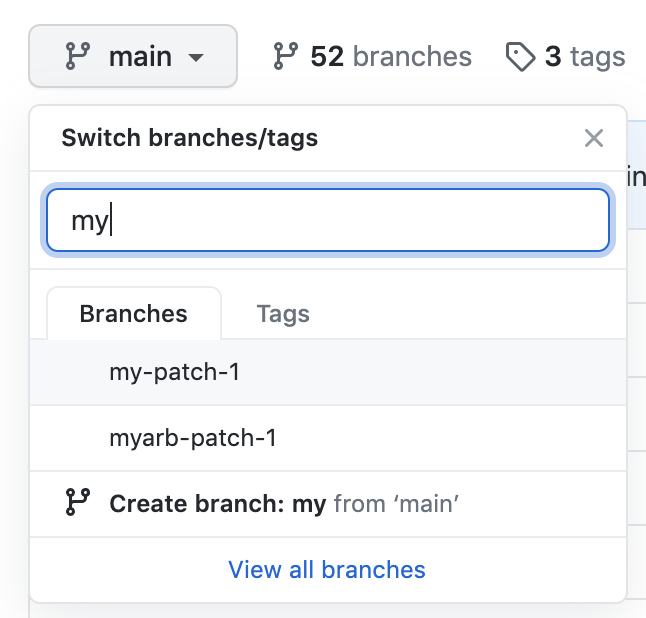
  2. In the "Branch" menu, choose the branch that contains your commits.

    Screenshot of the branch dropdown menu on the main page of a repository.

  3. 在文件列表上方的黄色横幅中,单击“比较和拉取请求”****,为关联的分支创建拉取请求。

    文件列表上方横幅的屏幕截图。

  4. Use the base branch dropdown menu to select the branch where you want to merge your changes. Then, use the compare branch dropdown menu to choose the topic branch where you made your changes.

  5. 为您的拉取请求输标题和说明。

  6. 要创建可供审查的拉取请求,请单击“创建拉取请求”。 若要创建草稿拉取请求,请使用下拉列表并选择“创建草稿拉取请求”,然后单击“草稿拉取请求” 。 如果你是组织的成员,则可能需要从组织所有者请求对草稿拉取请求的访问权限。 请参阅“Pull requests”。

提示

创建拉取请求后,你可请求特定人员审查你提议的更改。 有关详细信息,请参阅“Requesting a pull request review”。

After your pull request has been reviewed, it can be merged into the repository. See Merging a pull request.

注意

若要详细了解 GitHub CLI,请参阅“关于 GitHub CLI”。

To create a pull request, use the gh pr create subcommand.

gh pr create

To assign a pull request to an individual, use the --assignee or -a flags. You can use @me to self-assign the pull request.

gh pr create --assignee "@octocat"

To specify the branch into which you want the pull request merged, use the --base or -B flags. To specify the branch that contains commits for your pull request, use the --head or -H flags.

gh pr create --base my-base-branch --head my-changed-branch

To include a title and body for the new pull request, use the --title and --body flags.

gh pr create --title "The bug is fixed" --body "Everything works again"

To mark a pull request as a draft, use the --draft flag.

gh pr create --draft

To add labels or milestones to the new pull request, use the --label and --milestone flags.

gh pr create --label "bug,help wanted" --milestone octocat-milestone

To add the new pull request to a specific project, use the --project flag.

gh pr create --project octocat-project

To assign an individual or team as reviewers, use the --reviewer flag.

gh pr create --reviewer monalisa,hubot --reviewer myorg/team-name

To create the pull request in your default web browser, use the --web flag.

gh pr create --web
  1. Click Preview Pull Request. GitHub Desktop opens a preview dialog that shows the diff of the changes between your current branch and the base branch.

    Alternatively, to go straight to GitHub to create your pull request, select the dropdown icon and click Create Pull Request.

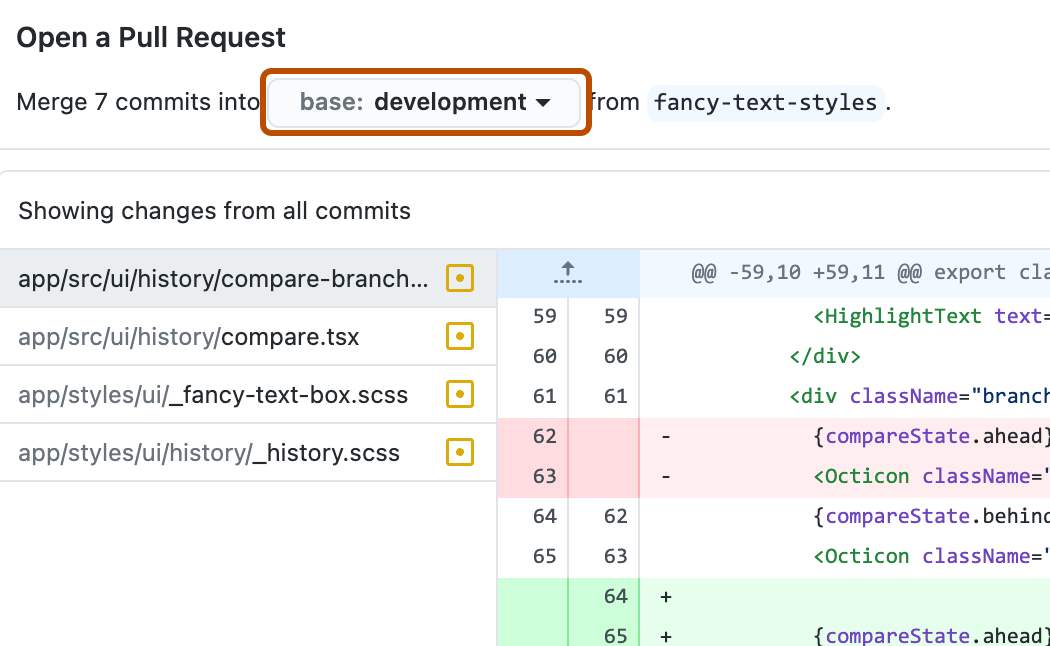
  2. Confirm that the branch in the base: dropdown menu is the branch where you want to merge your changes.

    Screenshot of the "Open a Pull Request" dialog window. A button with a dropdown icon, labeled "base: development", is outlined in orange.

    GitHub Desktop tells you whether the current branch can be automatically merged into the base branch.

    Screenshot of the "Open a Pull Request" dialog window. A status label stating "Can't automatically merge" is highlighted with an orange outline.

  3. Click Create Pull Request. GitHub Desktop opens your default browser and takes you to GitHub.

  4. 为您的拉取请求输标题和说明。

  5. 要创建可供审查的拉取请求,请单击“创建拉取请求”。 若要创建草稿拉取请求,请使用下拉列表并选择“创建草稿拉取请求”,然后单击“草稿拉取请求” 。 如果你是组织的成员,则可能需要从组织所有者请求对草稿拉取请求的访问权限。 请参阅“Pull requests”。

  1. After you commit changes to your local copy of the repository, click the Create Pull Request icon.
    Screenshot of the top of the "Source Control" side bar. The pull request icon is highlighted with a dark orange outline.
  2. Check that the local branch and repository you're merging from, and the remote branch and repository you're merging into, are correct. Then, give the pull request a title and a description.
    Screenshot of the "GitHub Pull Request" side bar with a form for creating a pull request, including "Title" and "Description" fields.
  3. Click Create.

For more information on creating pull requests in GitHub Codespaces, see 将 GitHub Codespaces 用于拉取请求.

Making changes to files in your pull request

After you open your pull request, you can continue changing files by adding new commits to your head branch.

You can also make changes to files on the GitHub website.

  1. On GitHub, navigate to a pull request in a repository.

  2. 在拉取请求上,单击“ Files changed”****。

    拉取请求的选项卡的屏幕截图。 “已更改的文件”选项卡以深橙色突出显示。

  3. Scroll down to the file you want to make changes to.

    • If the pull request has a lot of files, you can use the filter to locate the file.
  4. Above the file you want to change, click . Screenshot of the options above a file on the "File changed" tab. The "Show options" button is highlighted with an orange rectangle.

  5. In the menu, click Edit file.

  6. Make your changes in the editor. When you commit your change, choose to commit directly back to your head branch.

Further reading