如果想要为拉取请求创建新分支,但对存储库没有写入权限,可以先分叉存储库。 请参阅 从复刻创建拉取请求 和 叉子。
创建拉取请求时,可以指定要将更改合并到哪个分支。 拉取请求只能在不同的两个分支之间打开。
注意
要在公共存储库中打开拉取请求,你必须具有对头分支或源分支写入权限;对于组织拥有的仓库,你必须是拥有该存储库的组织的成员才能打开拉取请求。
可以将拉取请求链接到问题,以显示修复正在进行,并在合并拉取请求时自动关闭问题。 有关详细信息,请参阅“将拉取请求链接到议题”。
创建拉取请求
-
在 GitHub 上,导航到存储库的主页面。
-
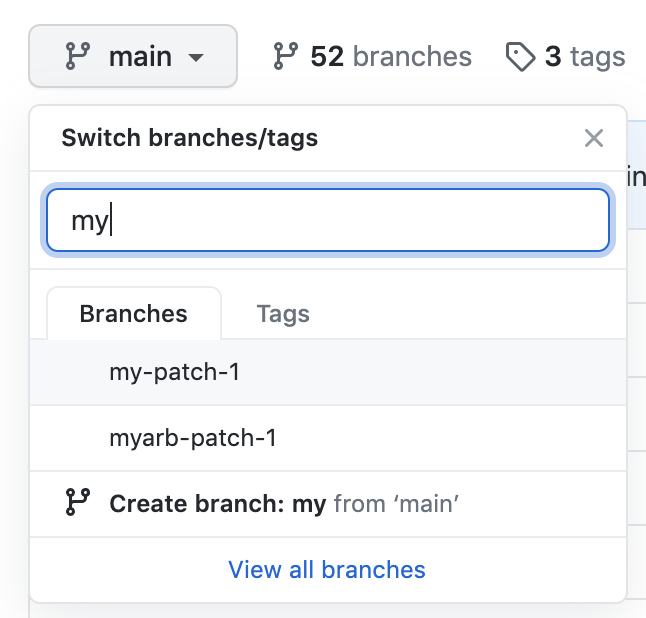
在“Branch(分支)”菜单中,选择包含提交的分支。
-
在文件列表上方的黄色横幅中,单击“比较和拉取请求”****,为关联的分支创建拉取请求。

-
使用 基 分支下拉菜单选择要合并更改的分支。 然后,使用 compare 分支下拉菜单选择你进行更改的主题分支。
-
为您的拉取请求输标题和说明。
-
要创建可供审查的拉取请求,请单击“创建拉取请求”。 若要创建草稿拉取请求,请使用下拉列表并选择“创建草稿拉取请求”,然后单击“草稿拉取请求” 。 如果你是组织的成员,则可能需要从组织所有者请求对草稿拉取请求的访问权限。 请参阅“拉取请求”。


提示
创建拉取请求后,可以要求特定人员查看建议的更改。 请参阅“请求拉取请求审查”。
审查拉取请求后,可以将其合并到存储库中。 请参阅“合并拉取请求”。
注意
若要详细了解 GitHub CLI,请参阅“关于 GitHub CLI”。
若要创建拉取请求,请使用 gh pr create 子命令。
gh pr create
若要将拉取请求分配给个人,请使用 --assignee 或 -a 标志。 可以使用 @me 自行分配拉取请求。
gh pr create --assignee "@octocat"
若要指定要将拉取请求合并到的分支,请使用 --base 或 -B 标志。 若要指定包含你的拉取请求提交的分支,请使用 --head 或 -H 标志。
gh pr create --base my-base-branch --head my-changed-branch
若要包含新拉取请求的标题和正文,请使用 --title 和 --body 标志。
gh pr create --title "The bug is fixed" --body "Everything works again"
若要将拉取请求标记为草稿,请使用 --draft 标志。
gh pr create --draft
若要向新的拉取请求添加标签或里程碑,请使用 --label 和 --milestone 标志。
gh pr create --label "bug,help wanted" --milestone octocat-milestone
若要将新的拉取请求添加到特定项目,请使用 --project 标志。
gh pr create --project octocat-project
若要将个人或团队指定为审阅者,请使用 --reviewer 标志。
gh pr create --reviewer monalisa,hubot --reviewer myorg/team-name
若要在默认 Web 浏览器中创建拉取请求,请使用 --web 标志。
gh pr create --web
-
单击预览拉取请求。 GitHub Desktop 打开一个预览对话框,显示当前分支和基分支之间的更改差异。
或者,若要直接转到 GitHub 创建拉取请求,请选择下拉列表图标并单击“ 创建拉取请求”。
-
确认“base:”下拉菜单中的分支是要合并更改的分支。
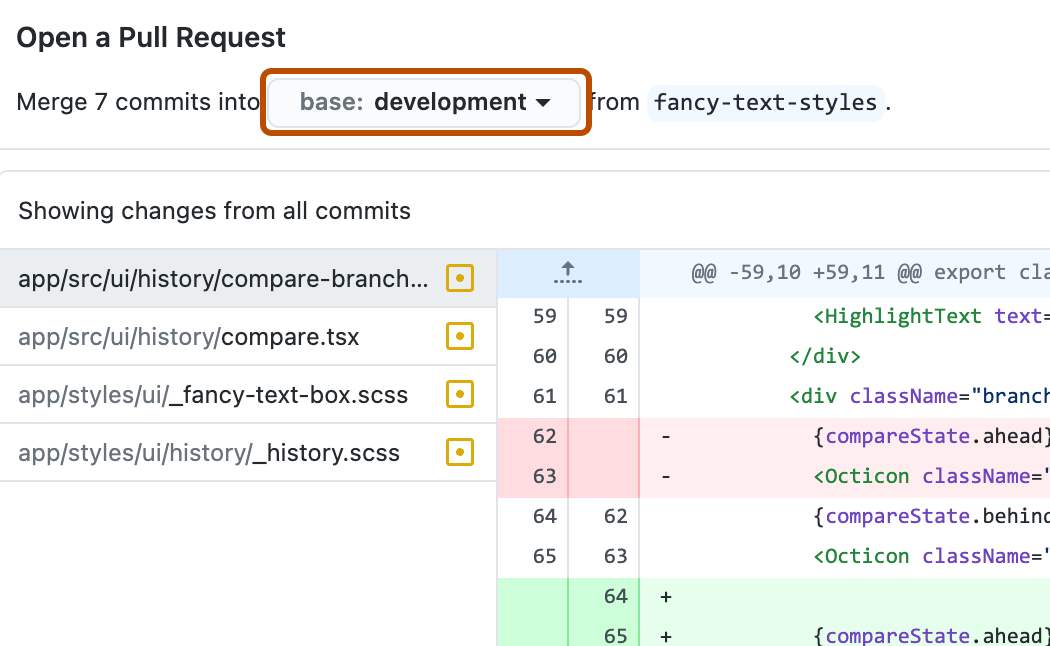

GitHub Desktop 指示当前分支是否可以自动合并到基分支中。

- 单击Create Pull Request。 GitHub Desktop 会打开你的默认浏览器并带你前往 GitHub。
- 为您的拉取请求输标题和说明。
- 要创建可供审查的拉取请求,请单击“创建拉取请求”。 若要创建草稿拉取请求,请使用下拉列表并选择“创建草稿拉取请求”,然后单击“草稿拉取请求” 。 如果你是组织的成员,则可能需要从组织所有者请求对草稿拉取请求的访问权限。 请参阅“拉取请求”。
- 将更改提交到存储库的本地副本后,单击“ 创建拉取请求 ”图标。

- 检查作为合并来源的本地分支和仓库以及作为合并目标的远程分支和仓库是否正确。 然后,为拉取请求提供标题和说明。

- 单击 “创建” 。
有关在 GitHub Codespaces 中创建拉取请求的详细信息,请参阅 将 GitHub Codespaces 用于拉取请求。
对拉取请求中的文件进行更改
打开拉取请求后,可以通过向头分支添加新提交来继续更改文件。
您还可以在 GitHub 网站上修改文件。
-
在 GitHub 上,转到存储库中的拉取请求。
-
在拉取请求上,单击“ Files changed”****。

-
向下滚动到要更改的文件。
- 如果拉取请求包含大量文件,可以使用筛选器来找到文件。
-
在要更改的文件上方,单击 。


- 在菜单上,单击“编辑文件”****。
- 在编辑器中进行更改。 提交更改时,选择直接提交回当前头部分支。