Introduction
GitHub Copilot can review your code and provide feedback. Where possible, Copilot's feedback includes suggested changes which you can apply with a couple of clicks.
For a full introduction to GitHub Copilot code review, see 关于GitHub Copilot 代码评审.
Copilot code review uses GitHub Actions to run agentic capabilities. For more information, see Agentic capabilities for Copilot code review.
Copilot code review is also available for organization members without a Copilot license, when enabled by an enterprise administrator or organization owner. See Copilot code review for organization members without a Copilot license.
Using Copilot code review
These instructions explain how to use Copilot code review in the GitHub website. To see instructions for other popular coding environments, click the appropriate tab at the top of the page.
-
On GitHub.com, create a pull request or navigate to an existing pull request.
-
Under "Reviewers" in the right sidebar, next to Copilot, click Request.

-
Wait for Copilot to review your pull request. This usually takes less than 30 seconds.
-
Scroll down and read through Copilot's comments.

Copilot labels each comment with a severity level of "High," "Medium," or "Low" to help you prioritize the issues it finds based on their importance.
By default, Copilot leaves a "Comment" review, not an "Approve" review or a "Request changes" review. This means that, by default, Copilot's reviews do not count toward required approvals for the pull request. However, if configured to do so, Copilot can leave "Approve" reviews. For more information, see Pull request approvals from Copilot.
-
Where possible, Copilot's feedback includes suggested changes which you can apply with a couple of clicks.
If you're happy with the changes, you can accept a single suggestion from Copilot and commit it, or accept a group of suggestions together in a single commit. For more information, see 在拉取请求中加入反馈.
You can also invoke Copilot cloud agent to implement suggested changes. To do this, you must:
- Enable GitHub Copilot code review and Copilot cloud agent.
- On review comments from GitHub Copilot code review, click Fix with Copilot. This creates a draft comment on the pull request, where you can instruct Copilot to address specific feedback. You can then select whether Copilot will create a new pull request against your branch or a commit to the same pull request with the suggestions applied.
-
Copilot's review comments behave like review comments from humans. You can add reactions to them, comment on them, resolve them and hide them.
Any comments you add to Copilot's review comments will be visible to humans, but they won't be visible to Copilot, and Copilot won't reply.


You can also request a review from Copilot through the GitHub REST API by requesting copilot-pull-request-reviewer[bot] as a reviewer. For more information, see 用于审查请求的 REST API 终结点.
Enabling automatic reviews
By default, you manually request a review from Copilot on each pull request, in the same way you would request a review from a human. However, you can set up Copilot to automatically review all pull requests. See 通过GitHub Copilot配置代码评审.
Requesting a re-review from Copilot
When you push changes to a pull request that Copilot has reviewed, it won't automatically re-review your changes unless you've configured it to review new pushes after enabling automatic reviews.
To manually request a re-review from Copilot, click the button next to Copilot's name in the Reviewers menu. For more information, see 请求拉取请求审查.
To automatically request re-reviews from Copilot on every push, enable automatic code review for the repository and select Review new pushes in the ruleset settings. For more information, see 通过GitHub Copilot配置代码评审.
注意
When re-reviewing a pull request, Copilot may repeat the same comments again, even if they have been dismissed with the "Resolve conversation" button or downvoted with the thumbs down (👎) button.
Choosing a review effort level
With review effort levels, you can choose the level of thoroughness of Copilot's review that matches the criticality of your code.
- Lite: Cost-efficient review that provides targeted feedback on glaring issues such as bugs, security vulnerabilities, and style inconsistencies.
- Balanced: Deeper analysis of complex logic, security-sensitive code, and cross-service changes, using a higher-reasoning model.
You can select Copilot review effort in the pull request before you request a review from Copilot, under the Reviewers section where Copilot appears as a reviewer. You can also set a default Copilot review effort in your settings. Organization owners and repository administrators can set a default Copilot review effort for automatic reviews.
For more information, see 关于GitHub Copilot 代码评审.
Pull request approvals from Copilot
注意
Copilot 审批目前处于 公开预览 状态,且可能会发生变化。
Every Copilot code review includes an approval assessment in the overview comment, indicating whether Copilot considers the pull request ready to approve. On its own, this assessment does not count toward merge requirements.
When approvals are enabled, Copilot can submit an approving review that satisfies your repository's required-approval rule the same way a teammate's approval would. If new commits are pushed after Copilot approves, the approval is dismissed, and you can re-request a review. For more details on required reviews, see 批准需要审查的拉取请求.
Approvals are off by default and can be configured at the enterprise, organization, and repository levels. Repository administrators can also use file paths to control which Copilot approvals count toward merge requirements. For configuration steps, see 通过GitHub Copilot配置代码评审.
Customizing Copilot's reviews with custom instructions
你可以通过向存储库中添加自定义指令来自定义 Copilot code review。 存储库自定义说明可以是存储库范围的,也可以是特定于路径的。
使用 .github/copilot-instructions.md 表示适用于整个代码库的存储库级评审指南。 这是描述组织范围期望的好地方,例如编码标准、评审标准或每次评审中应考虑的 Copilot 一般做法。
使用位于仓库根目录中的 AGENTS.md 文件来提供更多仓库上下文信息,帮助 Copilot 更好地理解你的项目是如何运作的。 例如,可以解释哪些模式是有意的、代码库的哪些部分需要更仔细的审查,以及团队认为良好的体系结构、测试和实现做法。 这有助于使评审更相关,并与团队构建软件的方式保持一致。
使用 .github/instructions/**/*.instructions.md 文件来编写仅在审查匹配文件时适用的针对特定路径的说明。 当存储库的不同部分遵循不同的约定、需要专用检查或需要针对特定语言、框架或子系统定制的评审指南时,这非常有用。
Copilot code review 还会从你的仓库中的 CLAUDE.md、GEMINI.md 和 REVIEW.md 文件读取自定义说明(如果这些文件存在)。
有关详细信息,请参阅“为GitHub Copilot添加存储库自定义说明”。
注意
审查拉取请求时,Copilot 会从头部分支(包含更改的分支)而不是基础分支读取存储库自定义说明、智能体说明和智能体技能。 例如,在将 my-feature-branch 合并到 main 时,Copilot 会使用 my-feature-branch 中的说明和技能,因此您可以在同一个拉取请求中测试对它们的更改,而无需先将它们合并。
示例
此文件示例 .github/copilot-instructions.md 包含三条指令,这些指令将应用于 Copilot code review存储库中的所有内容。
When performing a code review, respond in Spanish.

When performing a code review, apply the checks in the `/security/security-checklist.md` file.

When performing a code review, focus on readability and avoid nested ternary operators.
MCP servers and agent skills
Copilot code review can use agent skills and MCP servers configured in the repository, when they are relevant to the code being reviewed.
To make these available for Copilot code review on GitHub, configure:
- Agent skills in your repository (in
.github/skills). If you want a skill to target review tasks, use a review-focused skill directory name such ascode-review. For setup details, see 为 GitHub Copilot 添加代理技能. - MCP servers in repository Copilot settings. The GitHub MCP server and Playwright MCP server are enabled by default. For setup details, see 为存储库配置 MCP 服务器.
Copilot code review 在以下情况下更有可能使用此上下文:
- 智能体技能目录具有以审核为中心的名称和说明,例如
code-review,指示它们用于拉取请求审核。 - 代理技能或自定义说明明确指示 Copilot code review 使用特定的 MCP 上下文。
- 拉取请求描述会引用可通过已配置的 MCP 服务器访问的项目,例如问题键或事件 ID。
若要验证用于特定评审的 MCP 上下文 Copilot code review ,请检查每个审阅评论底部是否存在属性。 这些属性引用用于生成该注释的特定代理技能或 MCP 服务器 Copilot code review 。 还可以从拉取请求时间线打开链接评审会话,然后检查会话日志以查看调用了哪些 MCP 服务器和工具。
在存储库设置中,允许 Copilot 在审查拉取请求时使用 MCP 工具默认处于启用状态。 如果您希望 MCP 服务器仅对 Copilot cloud agent 可用,而不对 Copilot code review 可用,请禁用此设置。 有关分步说明,请参阅 为存储库配置 MCP 服务器。
Customizing Copilot code review's environment
Copilot code review runs in an ephemeral development environment, similar to Copilot cloud agent. You can customize this environment using a GitHub Actions workflow file, in the same way you would for Copilot cloud agent, for example, to preinstall tools or dependencies, or to switch to a different operating system. For more information on how to structure this file, see 配置开发环境.
You can use either of the following files to configure Copilot code review's environment:
.github/workflows/copilot-setup-steps.yml: If you have already configured this file for Copilot cloud agent, Copilot code review will use the same configuration by default..github/workflows/copilot-code-review.yml: We recommend creating this file if you want to configure Copilot code review's environment independently of Copilot cloud agent. If this file is present in your repository, it is used for Copilot code review instead ofcopilot-setup-steps.yml.
You can also configure firewall rules to control the domains and URLs that Copilot code review can access, at both the organization and repository level. These settings are configured separately from Copilot cloud agent's firewall settings, in their own section of the same "Internet access" tab. See 自定义或禁用GitHub Copilot的防火墙.
Providing feedback on Copilot's reviews
You can provide feedback on Copilot's comments directly within each comment. We use this information to improve the product and the quality of Copilot's suggestions.
To provide feedback on a review comment from Copilot, click the thumbs up (👍) or thumbs down (👎) button.

Reviewing a selection of code
You can request an initial review of a highlighted selection of code in Visual Studio Code.
- In Visual Studio Code, select the code you want to review.
- Right-click the selected code and choose Generate Code > Review.
- VS Code creates review comments in the Comments panel and also shows them inline in the editor.
Reviewing all uncommitted changes
If you have uncommitted changes, you can request a review in Visual Studio Code.
-
In VS Code, click the Source Control button in the Activity Bar.
-
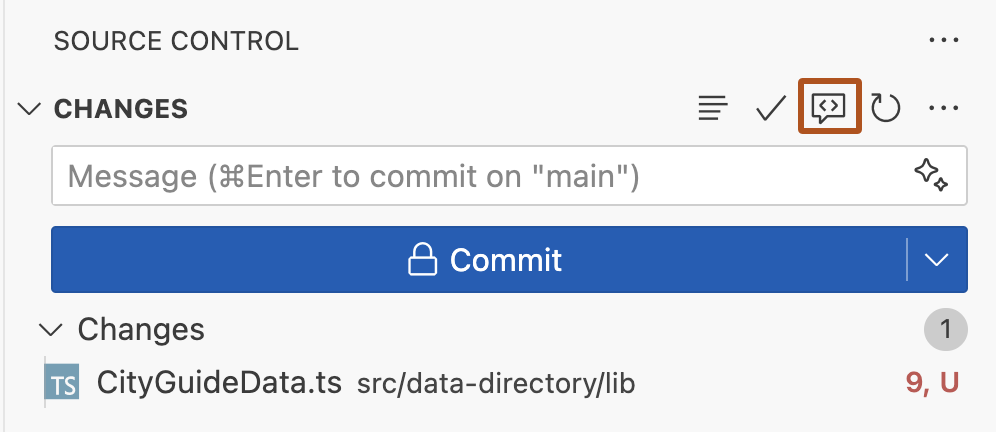
At the top of the Source Control view, hover over CHANGES, then click the Copilot Code Review - Uncommitted Changes button.
-
Wait for Copilot to review your changes. This usually takes less than 30 seconds.
-
If Copilot has any comments, they will be shown inline in your file(s), and in the Problems tab.

Working with suggested changes provided by Copilot
Where possible, Copilot's feedback includes suggested changes which you can apply with a single click.

If you're happy with the change, you can accept a suggestion from Copilot by clicking the Apply and Go To Next button. Any changes you apply will not be automatically committed.
If you don't want to apply Copilot's suggested change, click the Discard and Go to Next button.
Providing feedback on Copilot's reviews
You can provide feedback on Copilot's comments directly within each comment. We use this information to improve the product and the quality of Copilot's suggestions.
To provide feedback, hover over the comment and click the thumbs up or thumbs down button.

Customizing Copilot's reviews with custom instructions
你可以通过向存储库中添加自定义指令来自定义 Copilot code review。 存储库自定义说明可以是存储库范围的,也可以是特定于路径的。
使用 .github/copilot-instructions.md 表示适用于整个代码库的存储库级评审指南。 这是描述组织范围期望的好地方,例如编码标准、评审标准或每次评审中应考虑的 Copilot 一般做法。
使用位于仓库根目录中的 AGENTS.md 文件来提供更多仓库上下文信息,帮助 Copilot 更好地理解你的项目是如何运作的。 例如,可以解释哪些模式是有意的、代码库的哪些部分需要更仔细的审查,以及团队认为良好的体系结构、测试和实现做法。 这有助于使评审更相关,并与团队构建软件的方式保持一致。
使用 .github/instructions/**/*.instructions.md 文件来编写仅在审查匹配文件时适用的针对特定路径的说明。 当存储库的不同部分遵循不同的约定、需要专用检查或需要针对特定语言、框架或子系统定制的评审指南时,这非常有用。
Copilot code review 还会从你的仓库中的 CLAUDE.md、GEMINI.md 和 REVIEW.md 文件读取自定义说明(如果这些文件存在)。
有关详细信息,请参阅“为GitHub Copilot添加存储库自定义说明”。
注意
审查拉取请求时,Copilot 会从头部分支(包含更改的分支)而不是基础分支读取存储库自定义说明、智能体说明和智能体技能。 例如,在将 my-feature-branch 合并到 main 时,Copilot 会使用 my-feature-branch 中的说明和技能,因此您可以在同一个拉取请求中测试对它们的更改,而无需先将它们合并。
示例
此文件示例 .github/copilot-instructions.md 包含三条指令,这些指令将应用于 Copilot code review存储库中的所有内容。
When performing a code review, respond in Spanish.

When performing a code review, apply the checks in the `/security/security-checklist.md` file.

When performing a code review, focus on readability and avoid nested ternary operators.
Prerequisite
To use Copilot code review, you must use Visual Studio version 17.14 or later. See the Visual Studio downloads page.
Using Copilot code review
These instructions explain how to use Copilot code review in Visual Studio. To see instructions for other popular coding environments, click the appropriate tab at the top of the page.
-
In the Git Changes window, click Review changes with Copilot. This button appears as a comment icon with a sparkle.
-
Copilot will begin reviewing your changes. After a few moments, a link showing the number of code review comments appears in the Git Changes window.
-
Click the link to view and navigate the comments. If no issues are found, you'll see the message: Copilot did not comment on any files.
-
Copilot displays comments in your code with a summary of each potential issue. You can:
- Review and make changes based on the suggestions.
- Dismiss a comment using the downward arrow in the top-right corner of the comment box.
-
To remove all review comments, click next to the code review link in the Git Changes window.
For more information on enabling and configuring Copilot code review in Visual Studio, see Review local changes with Copilot Chat in the Visual Studio documentation.
Using Copilot code review
These instructions explain how to use Copilot code review in GitHub Mobile. To see instructions for other popular coding environments, click the appropriate tab at the top of the page.
- In GitHub Mobile, open a pull request.
- Scroll down to the Reviews section and expand it.
- Click Request Reviews.
- Add Copilot as a reviewer, then click Done.
Copilot will review the changes and provide feedback.
Prerequisite
To use Copilot code review in Xcode, you must use version 0.41.0 or later of the GitHub Copilot Chat extension. Download the latest release from the github/CopilotForXcode repository.
Using Copilot code review
These instructions explain how to use Copilot code review in Xcode. To see instructions for other popular coding environments, click the appropriate tab at the top of the page.
-
In Xcode, make some changes to one or more files.
-
Open the Copilot chat window by clicking Editor in the menu bar, clicking GitHub Copilot then Open Chat.
-
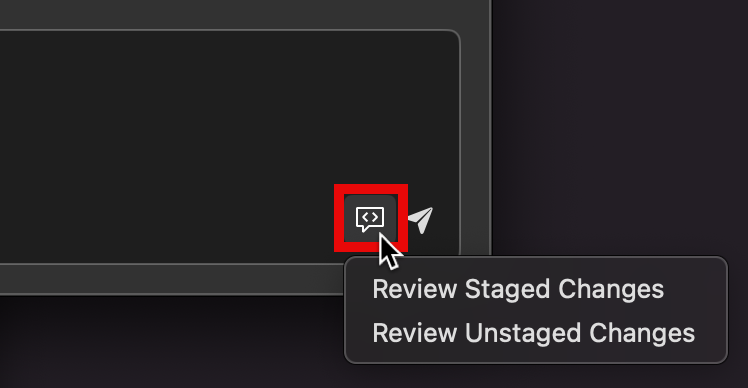
Near the bottom right of the prompt box in the Copilot chat window, click the Code Review button (a speech bubble icon).
-
Click either Review Staged Changes or Review Unstaged Changes.
-
A list of files containing changes is displayed in the chat window. Click the check boxes to deselect any files you don't want Copilot to review.
-
Click Continue to start the review process.
-
If Copilot finds things to comment on, it displays a Reviewed Changes list in the chat window, listing the files it has commented on. Click a file in this list to see the comments.
Each comment is shown in a popup, overlaid over the editor.

-
If there is more than one comment in the file, use the up and down arrows, at the top right of the popup, to navigate between comments.
-
Copilot may suggest replacement code. You can apply the suggested change by clicking Accept or reject it by clicking Dismiss.
-
Click another file in the Reviewed Changes list in the chat window, to see the review comments for another file.


Prerequisites
-
Access to Copilot. 请参阅“关于GitHub Copilot”。
-
Compatible JetBrains IDE. To use GitHub Copilot in JetBrains, you must have a compatible JetBrains IDE installed. GitHub Copilot is compatible with the following IDEs:
- IntelliJ IDEA(旗舰版、社区版、教育版)
- Android Studio
- CLion
- Code With Me 来宾
- DataGrip
- DataSpell
- GoLand
- JetBrains 客户端
- MPS
- PhpStorm
- PyCharm(专业版、社区版、教育版)
- Rider
- RubyMine
- RustRover
- WebStorm
请参阅 JetBrains IDE 工具查找器进行下载。
-
最新版本的 GitHub Copilot 扩展。 请在 JetBrains Marketplace 中查看GitHub Copilot插件。 有关安装说明,请参阅“在环境中安装 GitHub Copilot 扩展”。
-
登录到 GitHub JetBrains IDE。 有关身份验证说明,请参阅“在环境中安装 GitHub Copilot 扩展”。
Using Copilot code review
These instructions explain how to use Copilot code review in JetBrains IDEs. To see instructions for other popular coding environments, click the appropriate tab at the top of the page.
-
In a JetBrains IDE, make some changes to one or more files.
-
Open the "Commit" tool window on the left-hand side.
-
Above the commit message input field, click Copilot: Review Code Changes. This button appears as a magnifying glass icon with a sparkle.
-
Copilot will begin reviewing your changes.
-
Copilot displays comments in your code with a summary of each potential issue. You can:
- Review and make changes based on the suggestions.
- Dismiss a comment by clicking Discard.
-
If there is more than one comment, use the up and down arrows, at the top right of the popup, to navigate between comments.
Prerequisites
- Access to Copilot. 请参阅“关于GitHub Copilot”。
- GitHub CLI. You must have the GitHub CLI installed and authenticated. See GitHub CLI 快速入门.
Using Copilot code review
These instructions explain how to use Copilot code review with the GitHub CLI. To see instructions for other popular coding environments, click the appropriate tab at the top of the page.
Requesting a review when creating a pull request
You can request a review from Copilot when creating a new pull request using gh pr create:
gh pr create --reviewer @copilot
gh pr create --reviewer @copilot
You can also select Copilot interactively from the searchable reviewer prompt during gh pr create.
? Reviewers  [Use arrows to move, space to select, <right> to all, <left> to none, type to filter]
  [ ]  Search (7472 more)
  [x]  monalisa (Mona Lisa)
> [x]  Copilot (AI)
Requesting a review on an existing pull request
To request a review from Copilot on an existing pull request, use gh pr edit. If you are not on the pull request's branch, specify the pull request number:
gh pr edit PR-NUMBER --add-reviewer @copilot
gh pr edit PR-NUMBER --add-reviewer @copilot
Replace PR-NUMBER with the number of the pull request you want reviewed. If you have the pull request's branch checked out, you can omit the number.